Register for Hallmarking

Already have an account

How to Pay for Your Packets in the Online Account using Elavon


Your Online Account offers the easiest way to pay for your packets.

Please follow these simple steps to pay for your packet.

1. Log in to your online account by clicking on Login in the top right hand corner. If you are logged in already Click on My Account and then View Account.

  • If you do not have an online account please click here for information on how to set one up.

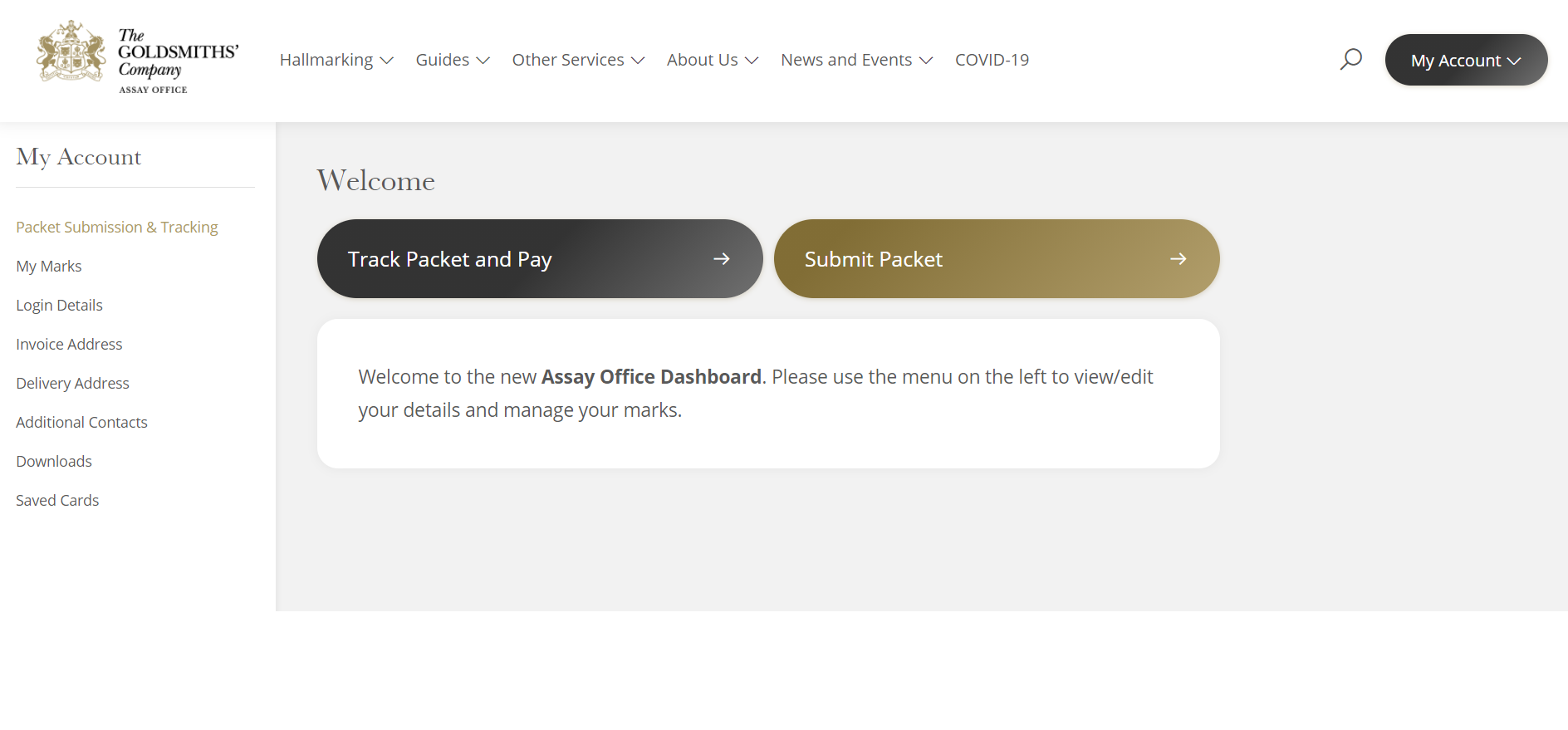
2. Click on Track Packet and Pay.
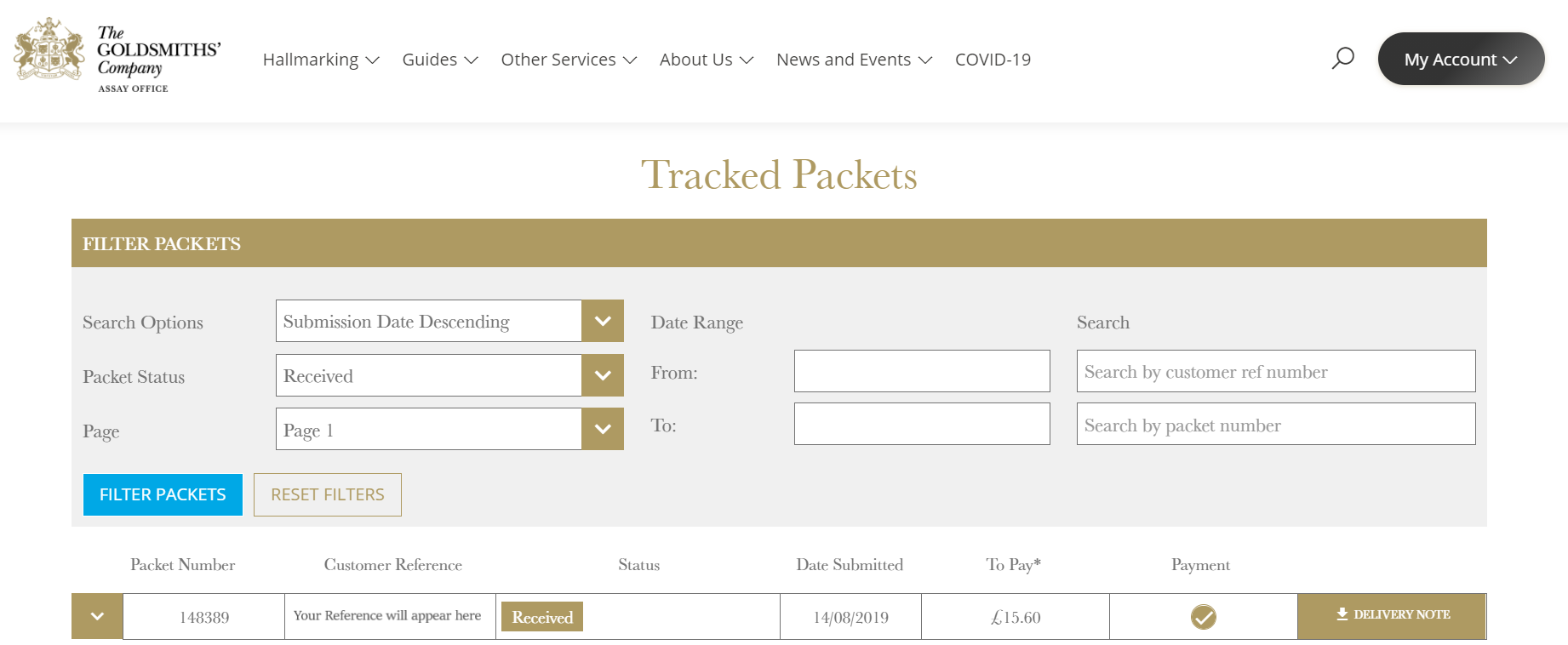
3. Find the packet(s) you wish to pay for either by using our Packet Number or your Customer Reference. Highlight the Payment Circle(s) for the packet(s) you wish to pay for.
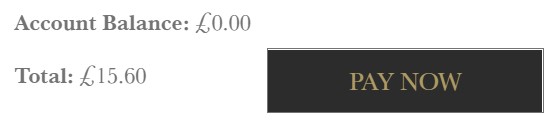
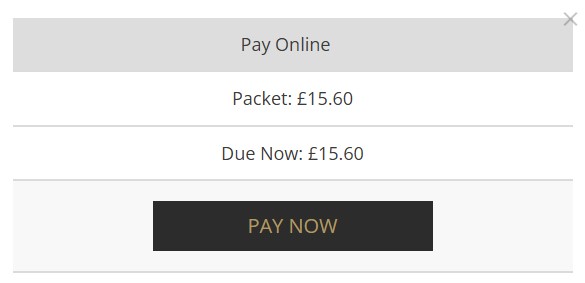
4. Scroll down and press the Pay Now Button.

5. Check totals are correct for packets selected.


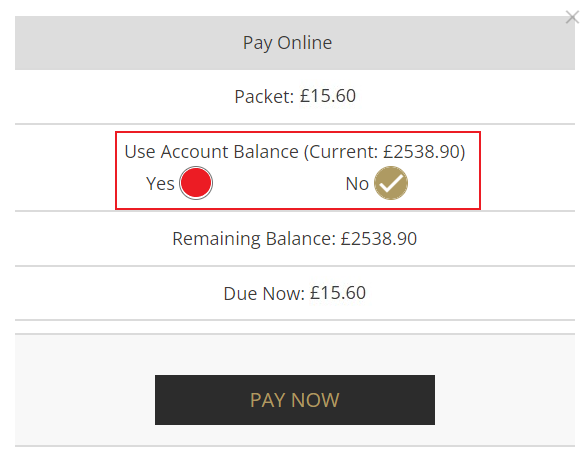
6. Press Pay Now again.

7. Should there be any credit on your account please tick the Yes button to use it for the Amount Due.

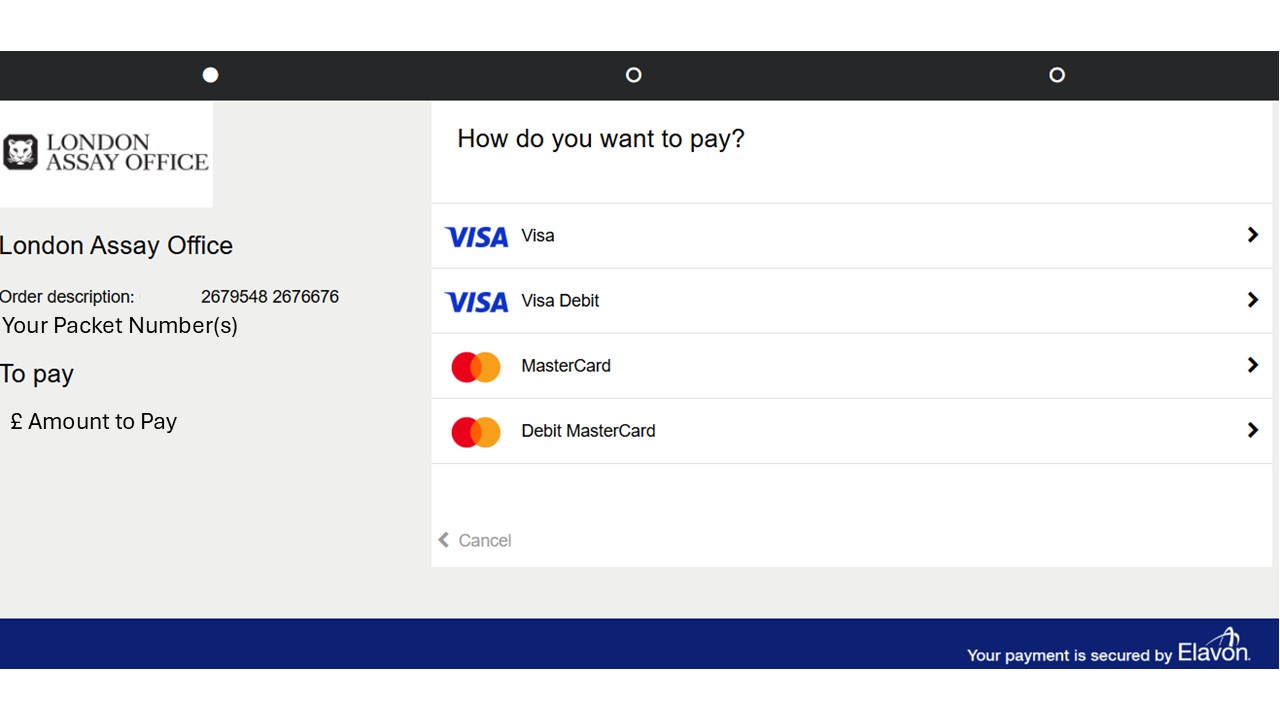
8. You will be redirected to the Elavon Portal and need to select card type. Failing to select the correct card type will result in the payment failing.


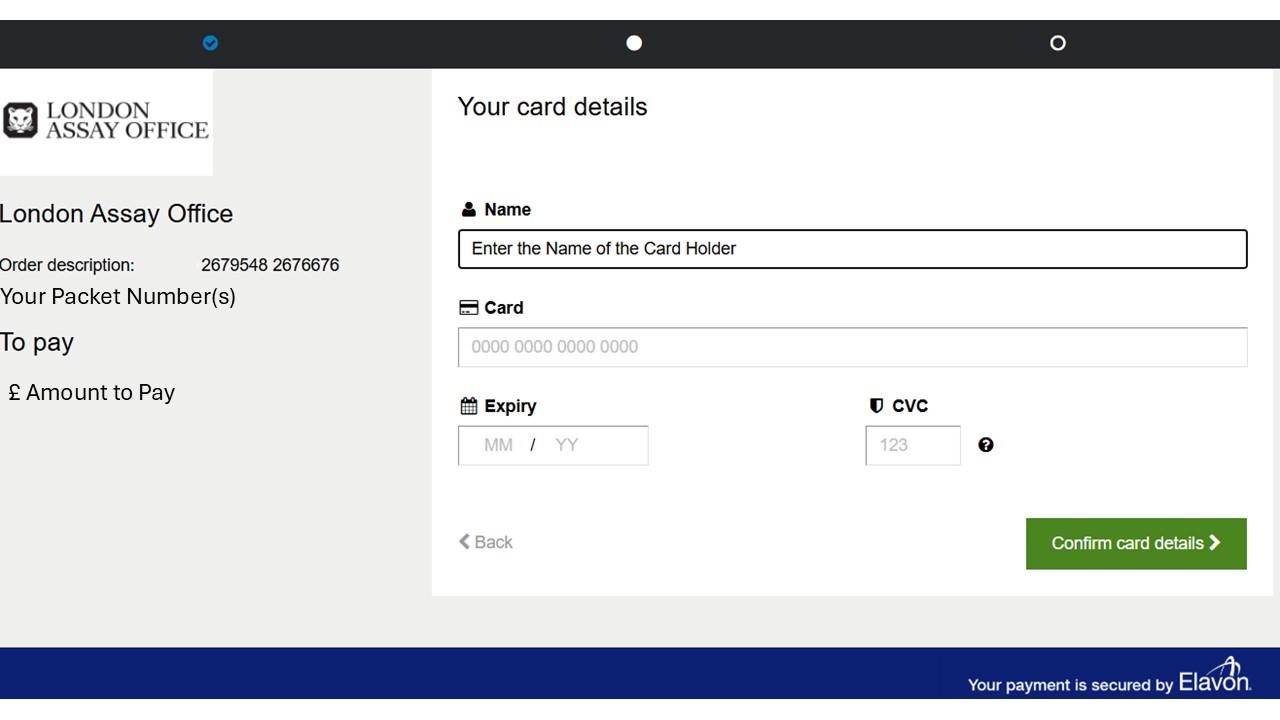
9. Enter the Name of the cardholder and your card details.

The Invoice/Billing Address for the payment will be pulled from your account. Should the card address not match your Invoice/Billing Address in your account you will need to amend the address to make payment. 


10. Click on Confirm Card Details to complete payment.


11. Your Payment is now successful.

At any point you may be asked to confirm the payment via 3DS authentication via apps, emails or text messages. Please follow these normal steps provided by your bank.

Any failures may be because of issues with this authentication which could also be due to errors in inputting details correctly or your address in your account not matching the card.